Introduction
Arduino is an open-source
platform used for building electronics projects. Arduino consists of
both a physical programmable circuit board (often referred to as a
microcontroller) and a piece of
software,
or IDE (Integrated Development Environment) that runs on your computer,
used to write and upload computer code to the physical board.
The Arduino platform has become quite popular with people just
starting out with electronics, and for good reason. Unlike most previous
programmable circuit boards, the Arduino does not need a separate piece
of hardware (called a programmer) in order to load new code onto the
board – you can simply use a USB cable. Additionally, the Arduino IDE
uses a simplified version of C++, making it easier to learn to program.
Finally, Arduino provides a standard form factor that breaks out the
functions of the micro-controller into a more accessible package.
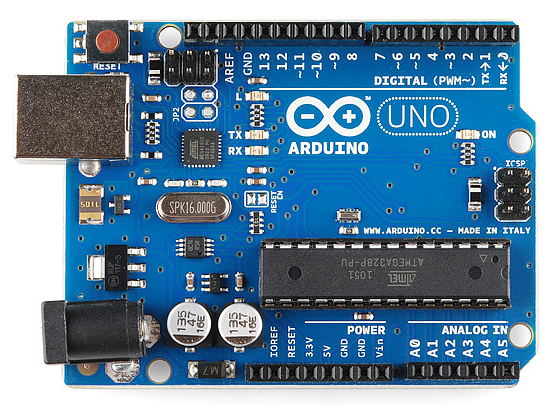
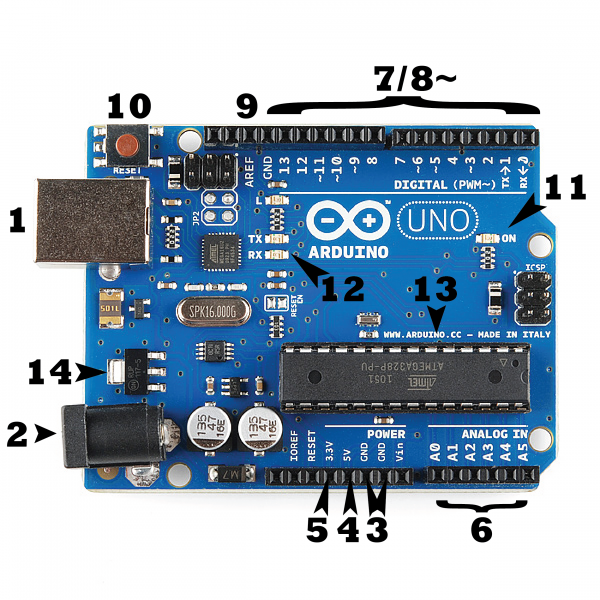
This is an Arduino Uno
The Uno is one of the more popular boards in the Arduino family and a
great choice for beginners. We’ll talk about what’s on it and what it
can do later in the tutorial.
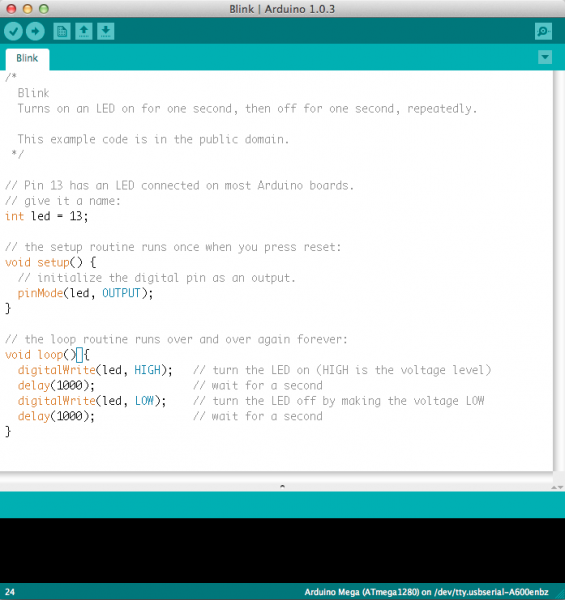
This is a screenshot of the Arduino IDE.
Believe it or not, those 10 lines of code are all you need to blink
the on-board LED on your Arduino. The code might not make perfect sense
right now, but, after reading this tutorial and the many more Arduino
tutorials waiting for you on our site, we’ll get you up to speed in no
time!
You Will Learn
In this tutorial, we’ll go over the following:
- What projects can be accomplished using an Arduino
- What is on the typical Arduino board and why
- The different varieties of Arduino boards
- Some useful widgets to use with your Arduino
Suggested Reading
Arduino is a great tool for people of all skill levels. However, you
will have a much better time learning along side your Arduino if you
understand some basic fundamental electronics beforehand. We recommend
that you have at least a decent understanding of these concepts before
you dive in to the wonderful world of Arduino.
What Does it Do?
The Arduino hardware and software was designed for artists,
designers, hobbyists, hackers, newbies, and anyone interested in
creating interactive objects or environments. Arduino can interact with
buttons, LEDs, motors, speakers, GPS units, cameras, the internet, and
even your smart-phone or your TV! This flexibility combined with the
fact that the Arduino software is free, the hardware boards are pretty
cheap, and both the software and hardware are easy to learn has led to a
large community of users who have contributed code and released
instructions for a
huge variety of Arduino-based projects.
For everything from
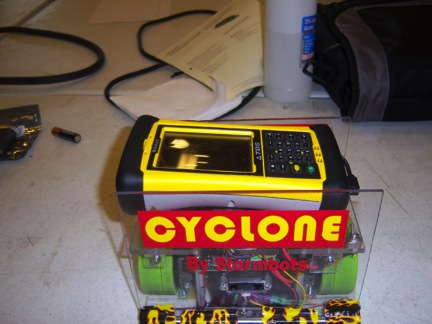
robots and a
heating pad hand warming blanket to
honest fortune-telling machines, and even a
Dungeons and Dragons dice-throwing gauntlet, the Arduino can be used as the brains behind almost any electronics project.
_Wear your nerd cred on your sleev… err, arm. _
And that’s really just the tip of the iceberg – if you’re curious
about where to find more examples of Arduino projects in action, here
are some good resources for Arduino-based projects to get your creative
juices flowing:
What's on the board?
There are many varieties of Arduino boards (
explained on the next page)
that can be used for different purposes. Some boards look a bit
different from the one below, but most Arduinos have the majority of
these components in common:
Power (USB / Barrel Jack)
Every Arduino board needs a way to be connected to a power source.
The Arduino UNO can be powered from a USB cable coming from your
computer or a wall power supply (
like this) that is terminated in a barrel jack. In the picture above the USB connection is labeled
(1) and the barrel jack is labeled
(2).
The USB connection is also how you will load code onto your Arduino
board. More on how to program with Arduino can be found in our
Installing and Programming Arduino tutorial.
NOTE: Do NOT use a power supply greater than 20
Volts as you will overpower (and thereby destroy) your Arduino. The
recommended voltage for most Arduino models is between 6 and 12 Volts.
Pins (5V, 3.3V, GND, Analog, Digital, PWM, AREF)
The pins on your Arduino are the places where you connect wires to construct a circuit (probably in conjuction with a
breadboard and some
wire.
They usually have black plastic ‘headers’ that allow you to just plug a
wire right into the board. The Arduino has several different kinds of
pins, each of which is labeled on the board and used for different
functions.
- GND (3): Short for ‘Ground’. There are several GND pins on the Arduino, any of which can be used to ground your circuit.
- 5V (4) & 3.3V (5): As you might guess, the 5V
pin supplies 5 volts of power, and the 3.3V pin supplies 3.3 volts of
power. Most of the simple components used with the Arduino run happily
off of 5 or 3.3 volts.
- Analog (6): The area of pins under the ‘Analog In’
label (A0 through A5 on the UNO) are Analog In pins. These pins can read
the signal from an analog sensor (like a temperature sensor) and convert it into a digital value that we can read.
- Digital (7): Across from the analog pins are the
digital pins (0 through 13 on the UNO). These pins can be used for both
digital input (like telling if a button is pushed) and digital output
(like powering an LED).
- PWM (8): You may have noticed the tilde (~) next to
some of the digital pins (3, 5, 6, 9, 10, and 11 on the UNO). These
pins act as normal digital pins, but can also be used for something
called Pulse-Width Modulation (PWM). We have a tutorial on PWM, but for now, think of these pins as being able to simulate analog output (like fading an LED in and out).
- AREF (9): Stands for Analog Reference. Most of the
time you can leave this pin alone. It is sometimes used to set an
external reference voltage (between 0 and 5 Volts) as the upper limit
for the analog input pins.
Reset Button
Just like the original Nintendo, the Arduino has a reset button
(10).
Pushing it will temporarily connect the reset pin to ground and restart
any code that is loaded on the Arduino. This can be very useful if your
code doesn’t repeat, but you want to test it multiple times. Unlike the
original Nintendo however, blowing on the Arduino doesn’t usually fix
any problems.
Power LED Indicator
Just beneath and to the right of the word “UNO” on your circuit board, there’s a tiny LED next to the word ‘ON’
(11).
This LED should light up whenever you plug your Arduino into a power
source. If this light doesn’t turn on, there’s a good chance something
is wrong. Time to re-check your circuit!
TX RX LEDs
TX is short for transmit, RX is short for receive. These markings
appear quite a bit in electronics to indicate the pins responsible for
serial communication.
In our case, there are two places on the Arduino UNO where TX and RX
appear – once by digital pins 0 and 1, and a second time next to the TX
and RX indicator LEDs
(12). These LEDs will give us
some nice visual indications whenever our Arduino is receiving or
transmitting data (like when we’re loading a new program onto the
board).
Main IC
The black thing with all the metal legs is an IC, or Integrated Circuit
(13).
Think of it as the brains of our Arduino. The main IC on the Arduino is
slightly different from board type to board type, but is usually from
the ATmega line of IC’s from the ATMEL company. This can be important,
as you may need to know the IC type (along with your board type) before
loading up a new program from the Arduino software. This information can
usually be found in writing on the top side of the IC. If you want to
know more about the difference between various IC’s, reading the
datasheets is often a good idea.
Voltage Regulator
The voltage regulator
(14) is not actually something
you can (or should) interact with on the Arduino. But it is potentially
useful to know that it is there and what it’s for. The voltage
regulator does exactly what it says – it controls the amount of voltage
that is let into the Arduino board. Think of it as a kind of gatekeeper;
it will turn away an extra voltage that might harm the circuit. Of
course, it has its limits, so don’t hook up your Arduino to anything
greater than 20 volts.
The Arduino Family
Arduino makes several different boards, each with different
capabilities. In addition, part of being open source hardware means that
others can modify and produce derivatives of Arduino boards that
provide even more form factors and functionality. If you’re not sure
which one is right for your project,
check this guide for some helpful hints. Here are a few options that are well-suited to someone new to the world of Arduino:
The Uno is a great choice for your first Arduino. It’s got everything
you need to get started, and nothing you don’t. It has 14 digital
input/output pins (of which 6 can be used as PWM outputs), 6 analog
inputs, a USB connection, a power jack, a reset button and more. It
contains everything needed to support the microcontroller; simply
connect it to a computer with a USB cable or power it with a AC-to-DC
adapter or battery to get started.
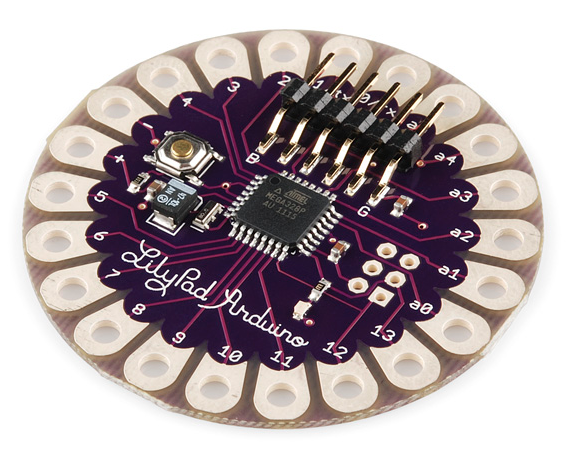
This is LilyPad Arduino main board! LilyPad is a wearable e-textile technology developed by
Leah Buechley
and cooperatively designed by Leah and SparkFun. Each LilyPad was
creatively designed with large connecting pads and a flat back to allow
them to be
sewn into clothing
with conductive thread. The LilyPad also has its own family of input,
output, power, and sensor boards that are also built specifically for
e-textiles. They’re even washable!
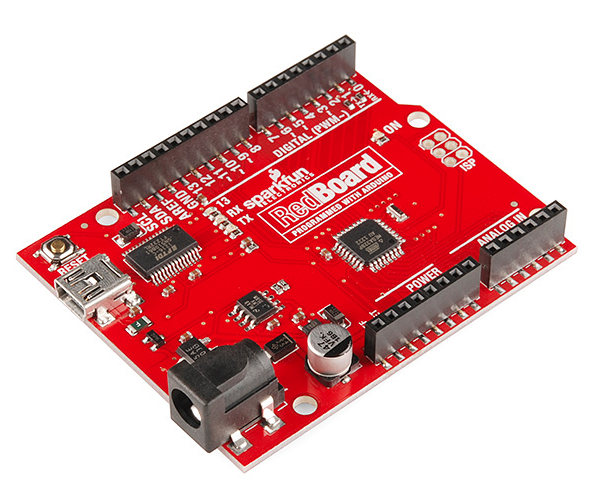
At SparkFun we use many Arduinos and we’re always looking for the
simplest, most stable one. Each board is a bit different and no one
board has everything we want – so we decided to make our own version
that combines all our favorite features.
The RedBoard can be programmed over a USB Mini-B cable using the
Arduino IDE. It’ll work on Windows 8 without having to change your
security settings (we used signed drivers, unlike the UNO). It’s more
stable due to the USB/FTDI chip we used, plus it’s completely flat on
the back, making it easier to embed in your projects. Just plug in the
board, select “Arduino UNO” from the board menu and you’re ready to
upload code. You can power the RedBoard over USB or through the barrel
jack. The on-board power regulator can handle anything from 7 to 15VDC.
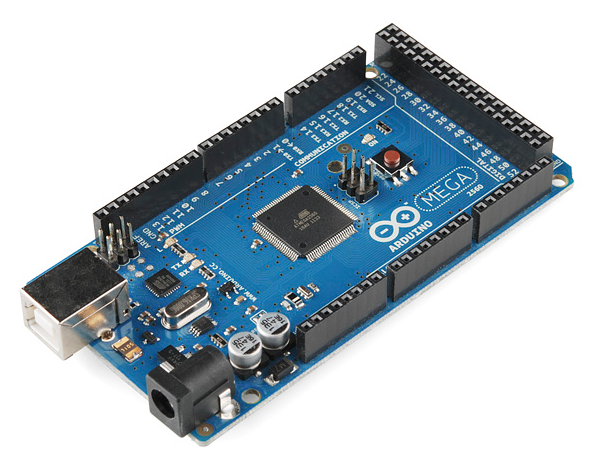
The Arduino Mega is like the UNO’s big brother. It has lots (
54!)
of digital input/output pins (14 can be used as PWM outputs), 16 analog
inputs, a USB connection, a power jack, and a reset button. It contains
everything needed to support the microcontroller; simply connect it to a
computer with a USB cable or power it with a AC-to-DC adapter or
battery to get started. The large number of pins make this board very
handy for projects that require a bunch of digital inputs or outputs
(like lots of LEDs or buttons).
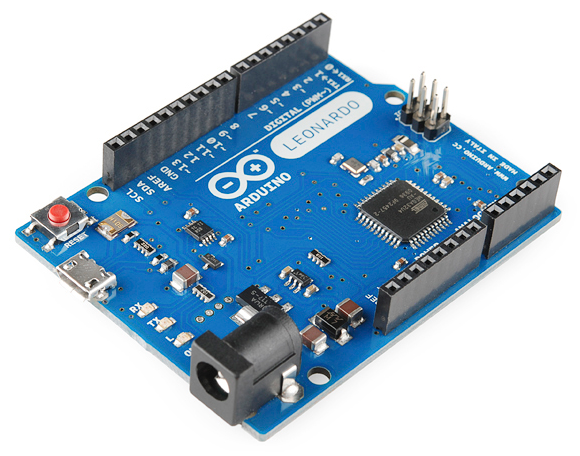
The Leonardo is Arduino’s first development board to use one
microcontroller with built-in USB. This means that it can be cheaper and
simpler. Also, because the board is handling USB directly, code
libraries are available which allow the board to emulate a computer
keyboard, mouse, and more!
The Extended Family
While your Arduino board sure is pretty, it can’t do a whole
lot on its own – you’ve got to hook it up to something. There are lots
of tutorials here on learn as well as the links back in the ‘What does
it do’ section, but rarely do we talk about the general
kinds of things you can easily hook into. In this section we’ll introduce basic
sensors as well as Arduino
shields, two of the most handy tools to use in bringing your projects to life.
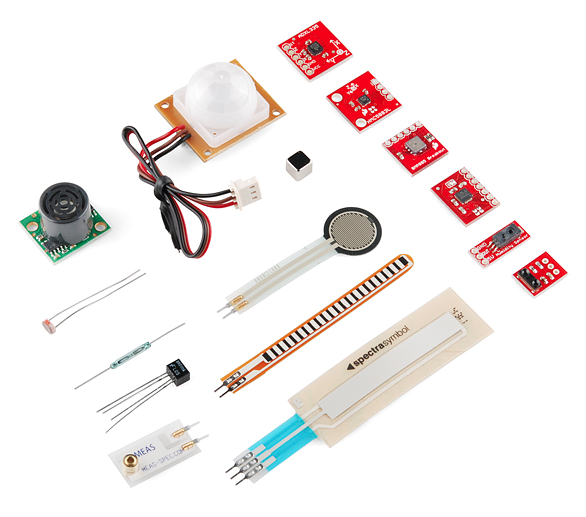
Sensors
With some simple code, the Arduino can control and interact with a wide variety of
sensors - things that can measure
light,
temperature,
degree of flex,
pressure,
proximity,
acceleration,
carbon monoxide,
radioactivity,
humidity,
barometric pressure,
you name it,
you can sense it!
Just a few of the sensors that are easily compatible with Arduino
Shields
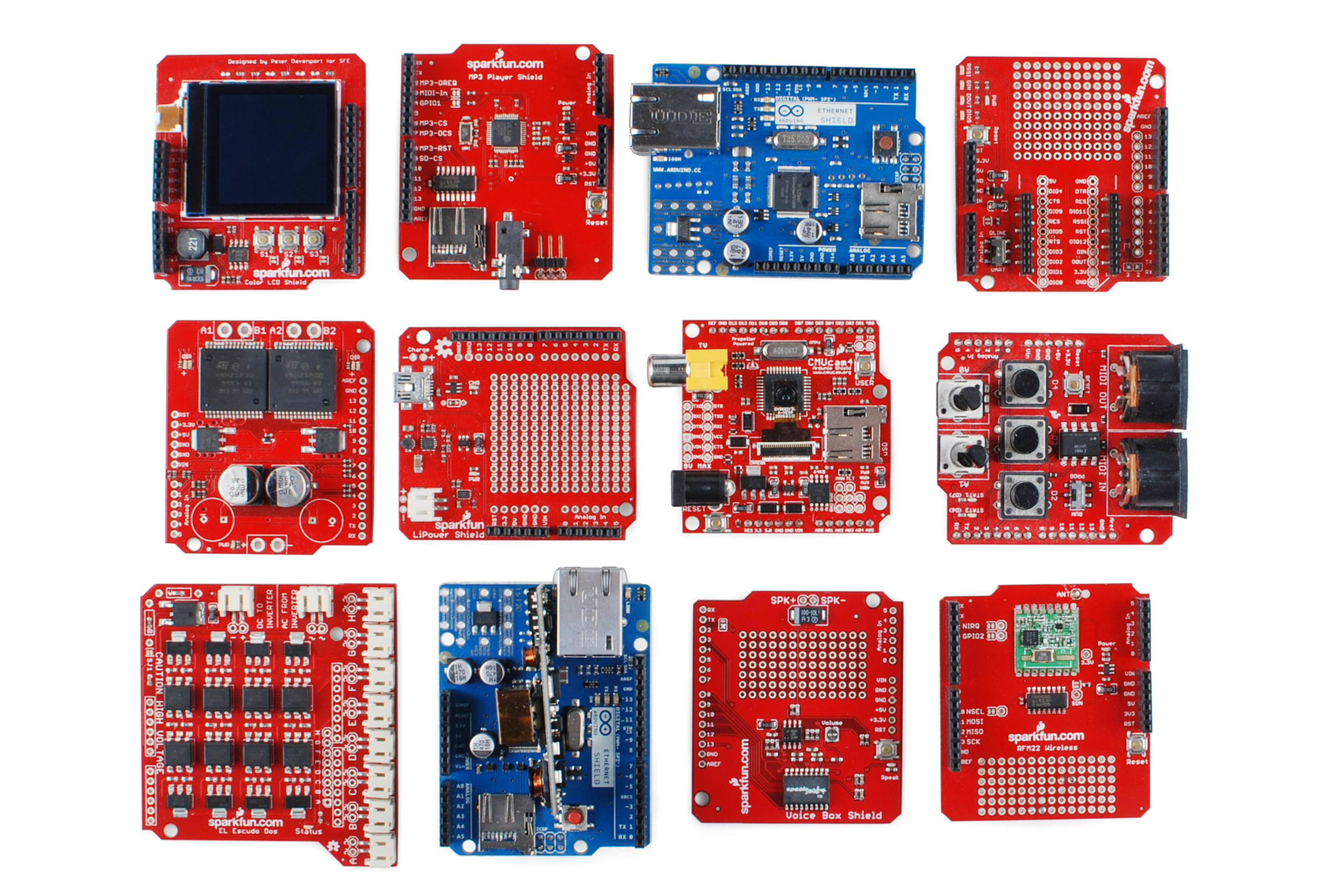
Additionally, there are these things called
shields – basically they are pre-built circuit boards that fit on top of your Arduino and provide additional capabilities –
controlling motors,
connecting to the internet,
providing cellular or
other wireless communication,
controlling an LCD screen, and
much more.
A partial selection of available shields to extend the power of your Arduino
For more on shields, check out:
Resources and Going Further
For more info about the Arduino, check
here and
here.
Now that you know all about the Arduino family, which board you might
want to use for your project, and that there are tons of sensors and
shields to help take your projects to the next level. Here’s some
further reading that may help you along in learning more about the world
of electronics. For more info on Arduino, check out these tutorials:
For more hardware related tutorials, give these a read: